Watch how it works
Short videos with captions. They load only when you press play.
Edit a PDF and sign it
Change existing text, add new text and a signature, then download — all in the browser.
Send a document for signature
Place signature, name and date fields, confirm your email code and send.
Sign a PDF on your phone
Draw your signature with your finger and place it on the signature line.
What the signer sees
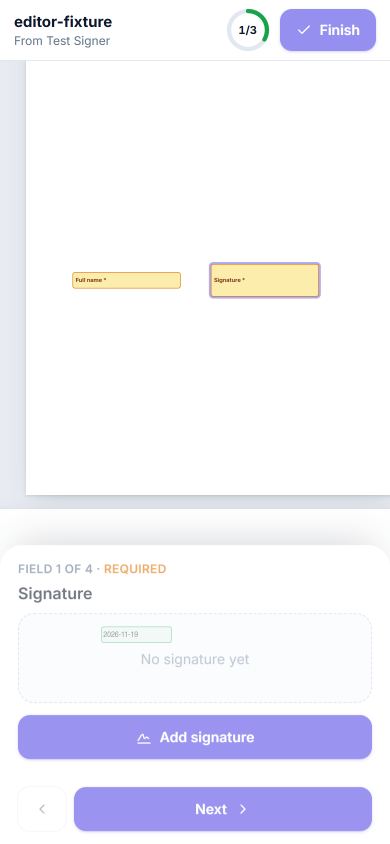
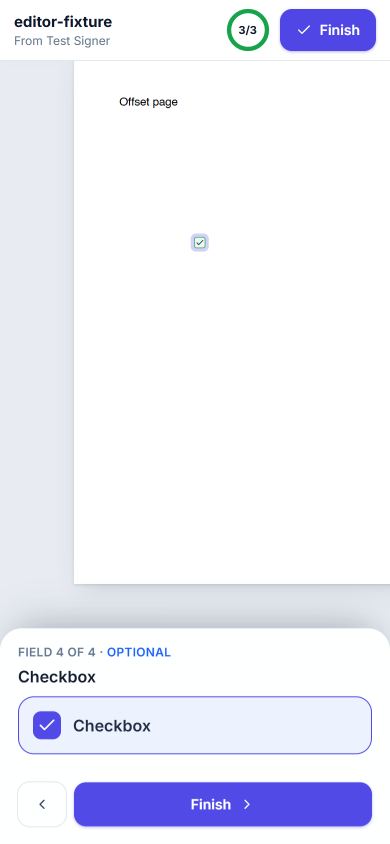
The signer verifies a one-time code and is guided field by field on their phone.
Getting started
Pick a tool from the tools page and choose a PDF. Most tools run in your browser, so your file is not uploaded; the Office conversions and Protect, Unlock and Repair PDF use our server and delete the file right after processing it. To keep documents for later, send them for signature and see their history, create a free account — you confirm your email with a 6-digit code.
Edit a PDF
- Open Edit PDF (or a document in your account) — the pages appear in the editor.
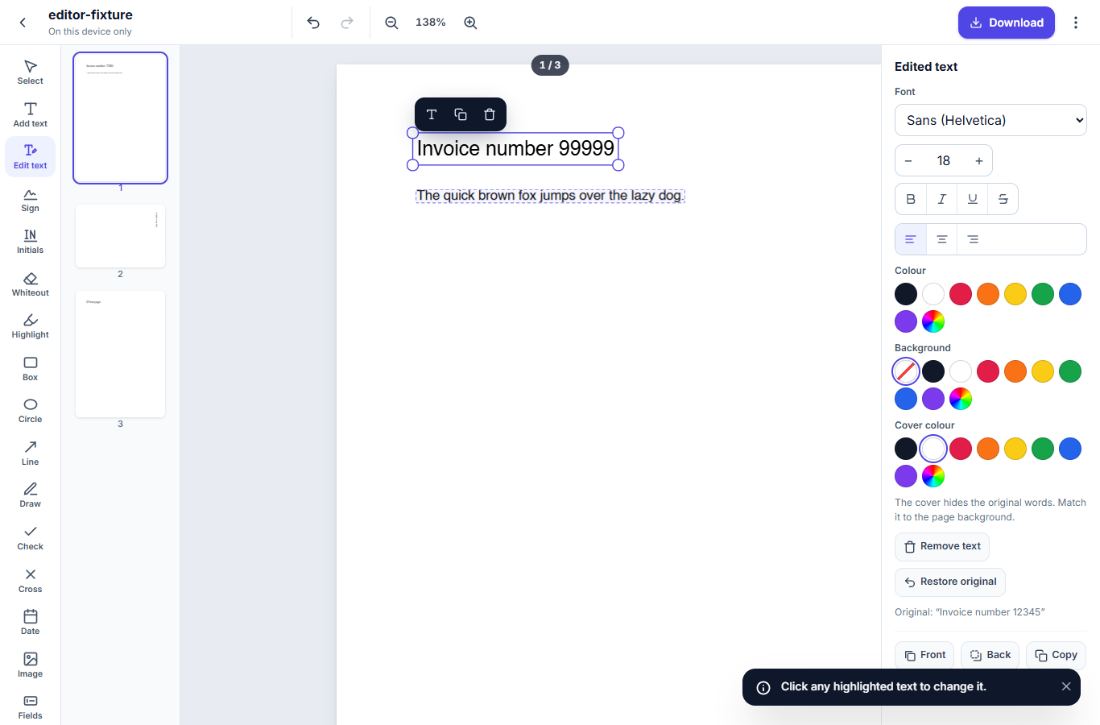
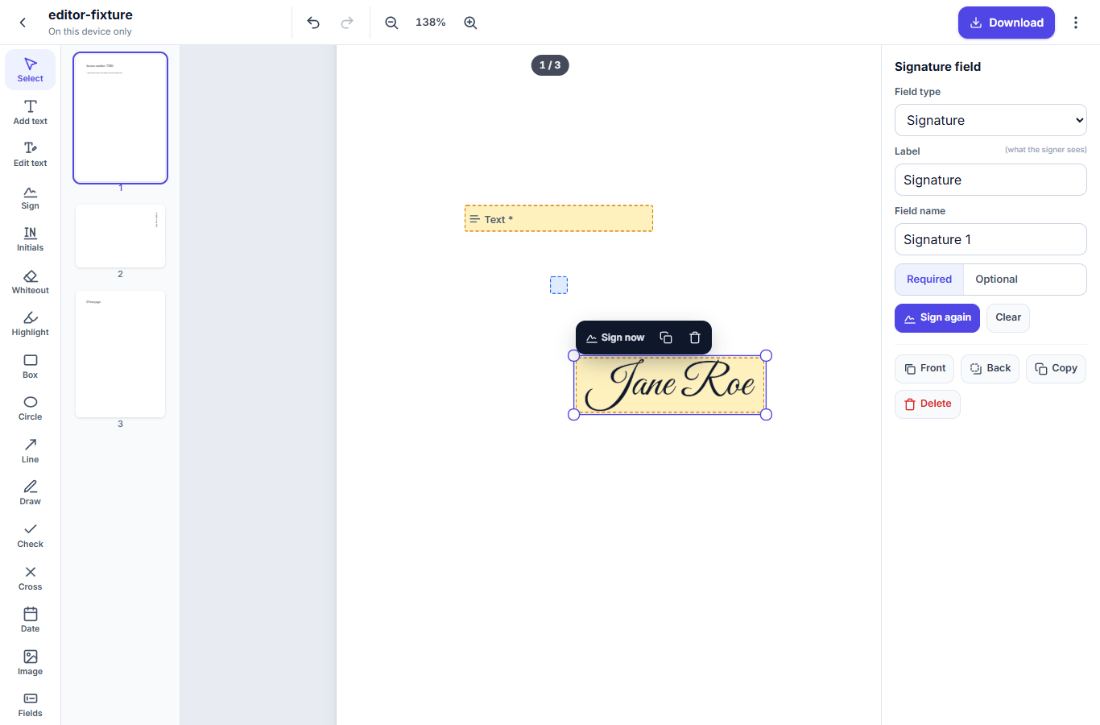
- Change existing text: choose Edit text; every line gets a dashed outline. Click a line and type. The new text lands exactly on the original baseline, in the closest matching font. The panel lets you change font, size, bold, italic, colour, or remove the text completely.
- Add things: text, images, boxes, circles, lines and arrows, freehand drawing, highlights, whiteout, check marks, crosses and today's date.
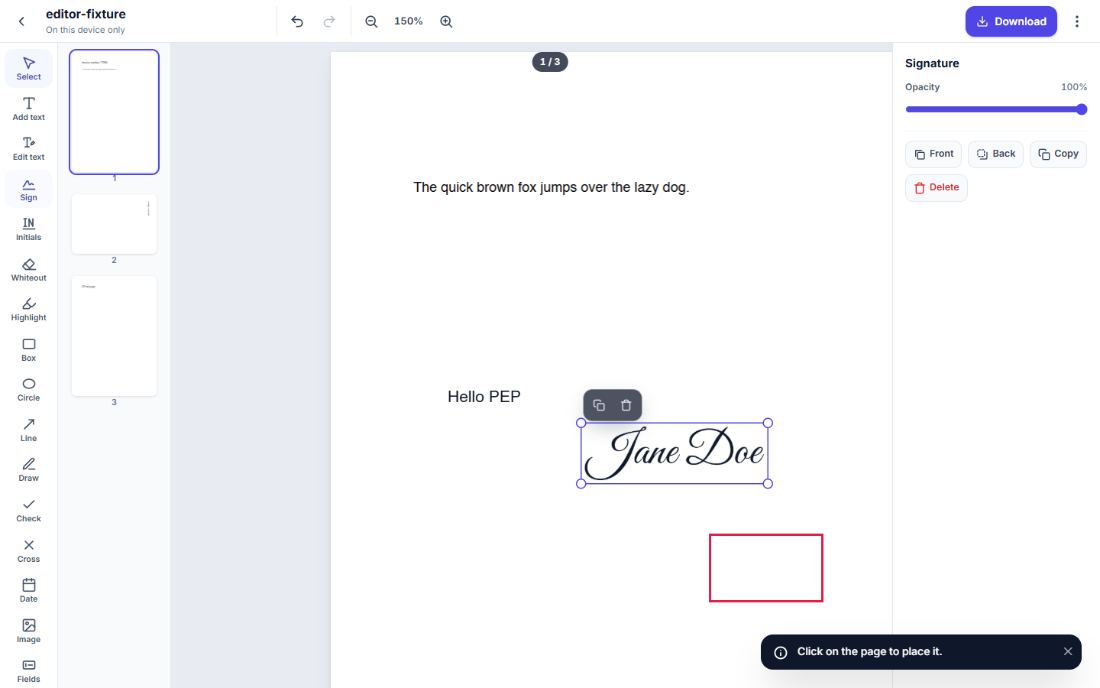
- Drag to move, use the corner handles to resize, and the small black toolbar to copy or delete. Ctrl+Z undoes anything.
- Click Download. In your account, changes are saved automatically while you work.
Sign a PDF yourself
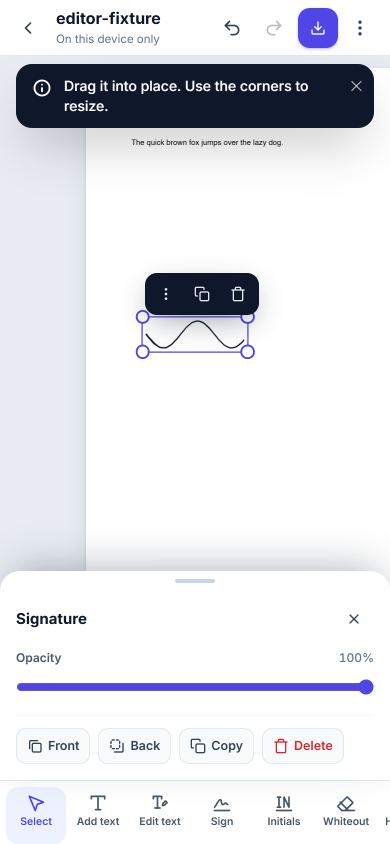
Use Sign PDF or the Sign and Initials tools. Draw with your finger, mouse or stylus, type your name in a handwriting style, or upload a photo of your signature — we remove the paper background. Tick Remember on this device to reuse it next time (it is stored only in your browser).
Fill in PDF forms
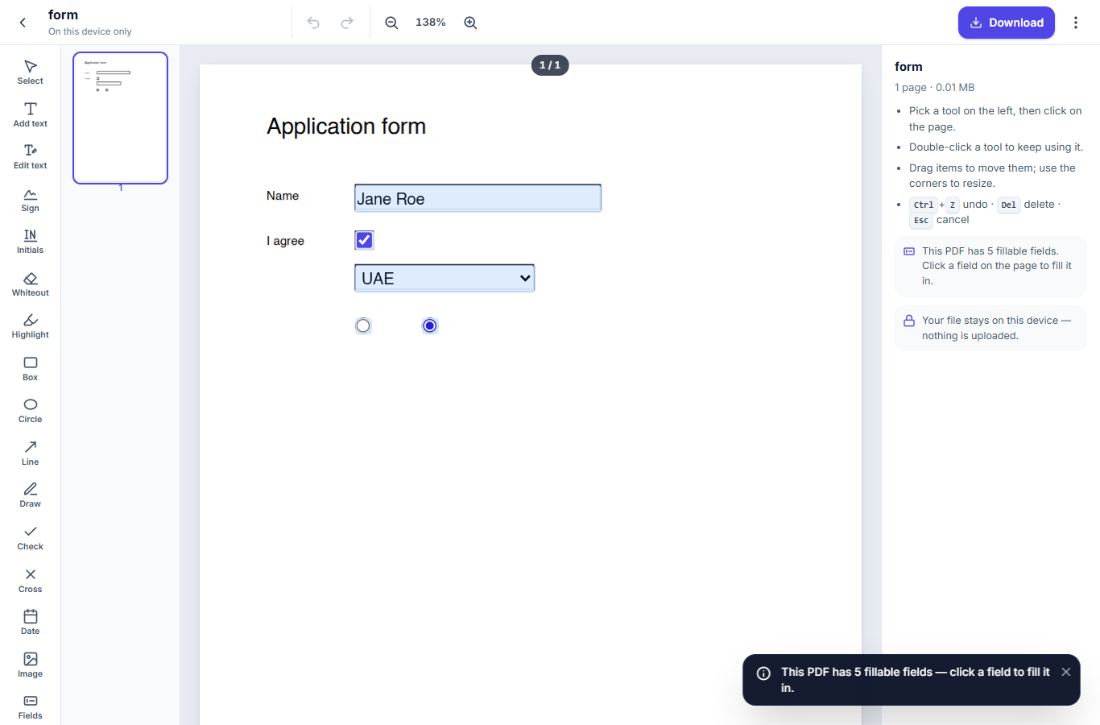
Open the form with Fill PDF. Fillable fields are detected automatically — click and type, tick boxes and choose options. The Download button gives you a fillable PDF that keeps the fields and your values; from the ⋮ menu, Download flattened PDF prints the values onto the page so they can no longer be changed. For forms without fields, use Add text, Check and Date.
Create fillable fields
Choose Fields, pick a field type — text, full name, date, number, email, phone, checkbox, radio button, signature or initials — and click on the page. In the panel you set the label the signer sees, whether it is required (yellow) or optional (blue), placeholders, maximum length, date format, number limits and radio groups. You can also fill in or sign a field yourself right away. Download saves a PDF with real fillable fields that anyone can complete in Adobe Reader, a browser or a phone; Download flattened PDF in the ⋮ menu prints the fields onto the page instead (filled values as text, empty fields as boxes) so nothing can be changed.
Send for signature
- Open the document in your account, add the fields, then click Send to sign.
- Enter the signer's name and email, an optional message and when the link should expire.
- The first time (and again every few hours) we email you a 6-digit code to confirm it is really you sending.
- The signer gets an email, confirms their own one-time code and is guided field by field. They can sign comfortably on a phone.
- Follow every step in Sent: delivered, opened, verified, signed. Use Remind, Send again (new link, old one stops working) or Cancel. Reminders are also sent automatically.
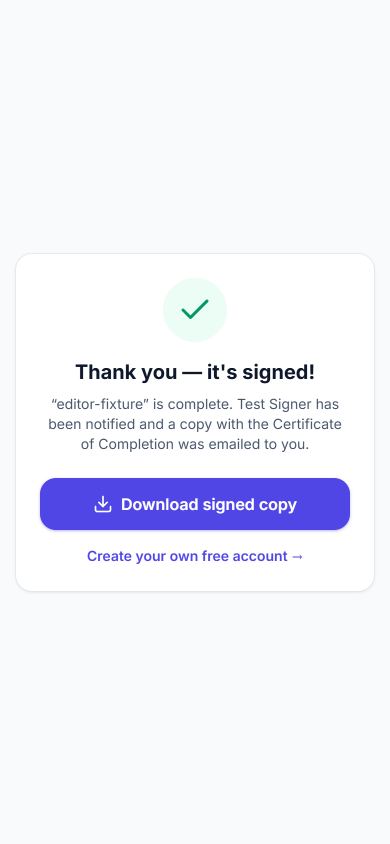
- When it is signed, you and the signer receive the signed PDF by email.
Certificate & legal validity
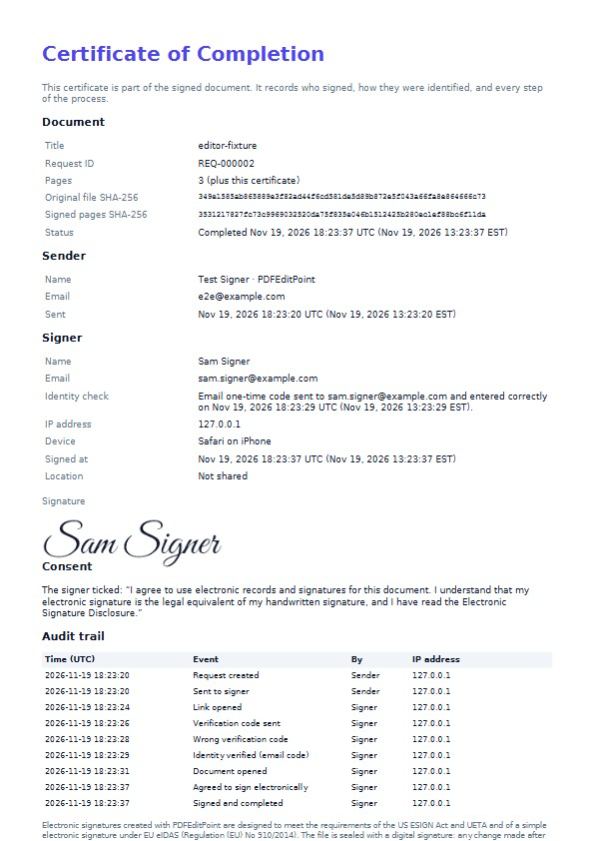
Every signed document ends with a Certificate of Completion: document title and request ID, SHA-256 fingerprints of the original and the signed pages, sender and signer, how the signer's identity was checked, IP address, device, time (with time zone), location if the signer chose to share it, the signature, the consent text and the full audit trail. The file is sealed with a digital signature, so PDF readers can show if anything changed afterwards. See our E-Signature Disclosure.
Organize, convert & create
- Organize PDF: drag to reorder, rotate, delete, insert pages from other PDFs or images, add blank pages, undo any step.
- Repair PDF: recovers damaged or corrupted PDFs that will not open, and tells you exactly how many pages were recovered. Runs on our server; the file is deleted right after.
- Merge: combine files — or tick documents in your library and click Merge selected.
- Compress: Light keeps text selectable; Recommended and Strong shrink scans and photos the most. You always see the size before and after.
- Split, Rotate, JPG to PDF, Watermark and Page numbers.
- Delete pages: tap the pages to remove or type ranges such as
2, 5-7. Crop: drag a box over the area to keep, on one page or all pages. - PDF to JPG / PNG: choose JPG for small files or PNG for pin-sharp text and diagrams, then the resolution (150 DPI for screens, 300 DPI for print).
Office conversions — PDF to Word, PDF to Excel, PDF to SVG, PDF to PowerPoint, Word to PDF, PowerPoint to PDF and HTML to PDF — run on our server, because browsers cannot read Office files reliably. Your file is sent over HTTPS, converted and deleted immediately after the conversion. For HTML to PDF you can also enter a web address: our server then opens that page and turns it into a PDF (pages behind a login cannot be converted).
Create & protect
- Protect PDF: type a password and download a copy encrypted with AES-256. We cannot recover a forgotten password, so keep it safe.
- Unlock PDF: remove a password you know, or printing and copying restrictions (no password needed for those). We never guess passwords — only unlock files you own or have permission to unlock.
- Create PDF form: start from a blank page or your own PDF and add text boxes, checkboxes, dropdowns and signature lines. The result is a standard fillable PDF.
- Resume / CV builder: pick a template, fill in your details and download a PDF. Your resume is saved only in this browser (local storage) so you can continue later on the same device — it is not sent to our servers.
Your files & privacy
Most tools work entirely in your browser, so your file is never uploaded. The server tools (PDF to Word, Excel, PowerPoint or SVG; Word, PowerPoint or HTML to PDF; Protect, Unlock and Repair PDF) upload the file over HTTPS, process it and delete it immediately afterwards — it is never kept or used for anything else.
Files in your account are stored privately and deleted automatically after your plan's storage period; you get an email a day before. You can delete any document — or your whole account — at any time from Account. Read the Privacy Policy.
Account security
- Continue with Google: sign up or sign in with your Google account in one click — we only receive your name and verified email address.
- Two-factor authentication: in Account → Two-factor authentication, scan the QR code with Google Authenticator, Microsoft Authenticator or Authy and enter the 6-digit code. From then on every sign-in asks for a code. Save the recovery codes in a safe place — each one lets you in once if you lose your phone.
- Sending documents for signature always needs a code emailed to you, so nobody can send in your name.
Plans & billing
Free is free forever with fair daily limits. Pro and Business raise every limit and keep files longer.
- Open Plans & billing and choose a plan, monthly or yearly.
- At checkout, pay the amount to one of the bank accounts or wallets shown — or scan the QR code with your banking app.
- Upload the receipt (screenshot or PDF), add the transaction ID and press Complete checkout.
- We confirm the payment and activate your plan — usually within a few hours on working days. Plans do not renew automatically; we remind you before yours ends.
See pricing and the refund policy.
Keyboard shortcuts
Ctrl + Z / Ctrl + Y | Undo / redo |
Ctrl + S | Save now (account) or download |
Ctrl + D | Duplicate the selected item |
Delete | Delete the selected item |
Arrow keys | Nudge (hold Shift for bigger steps) |
Esc | Stop editing, deselect or stop the current tool |
Ctrl + + / − / 0 | Zoom in / out / fit |
T · E · S · W · H · R · O · L · P · X · D · I · F | Text, Edit text, Sign, Whiteout, Highlight, Box, Circle, Line, Draw, Check, Date, Image, Fields |
Frequently asked questions
Do I need an account?
No. Every tool works without an account. An account lets you save documents for later, send them for signature and track them.
Is my file uploaded?
Most tools run in your browser, so the file never leaves your device. Office conversions (PDF to Word, Excel, PowerPoint or SVG; Word, PowerPoint or HTML to PDF) and Protect, Unlock and Repair PDF are processed on our server: the file is sent over HTTPS, processed and deleted immediately after the conversion. Each tool page says which kind it is.
Why does my edited text look slightly different from the original?
PDFs often use fonts that are embedded only partly. We pick the closest standard font (sans, serif or mono) and the same size, colour, weight and position. You can change the font in the panel on the right.
Can I edit a scanned PDF?
A scan is a picture of text, so there is no text to change. Use Whiteout to hide the old words and Add text to type new ones on top.
Is my signature legally binding?
Electronic signatures are recognised under the US ESIGN Act and UETA, the EU eIDAS Regulation (simple electronic signatures) and the laws of many other countries. Some documents (for example wills or certain court and property papers) still need a handwritten or qualified signature — check what applies to you.
How does the signer prove who they are?
They receive a 6-digit code by email and must enter it before the document opens. The verification, their IP address, device and the time are recorded in the audit trail on the certificate.
How long are files kept?
Documents in your account are deleted automatically after your plan's storage period (7 days on Free). We email you a day before. Files you use with in-browser tools without an account are never uploaded; files sent to a server conversion tool are deleted immediately after the conversion.
The signer did not receive the email.
Ask them to check spam, then open the request in Sent and use Remind, or Send again to correct the address. Every attempt is shown in the timeline.
Can I use it on my phone?
Yes. The editor and the signing page are built for phones and tablets: pinch to zoom, tools at the bottom, and no unexpected zooming when you type.
Still stuck? Contact us or report a problem.